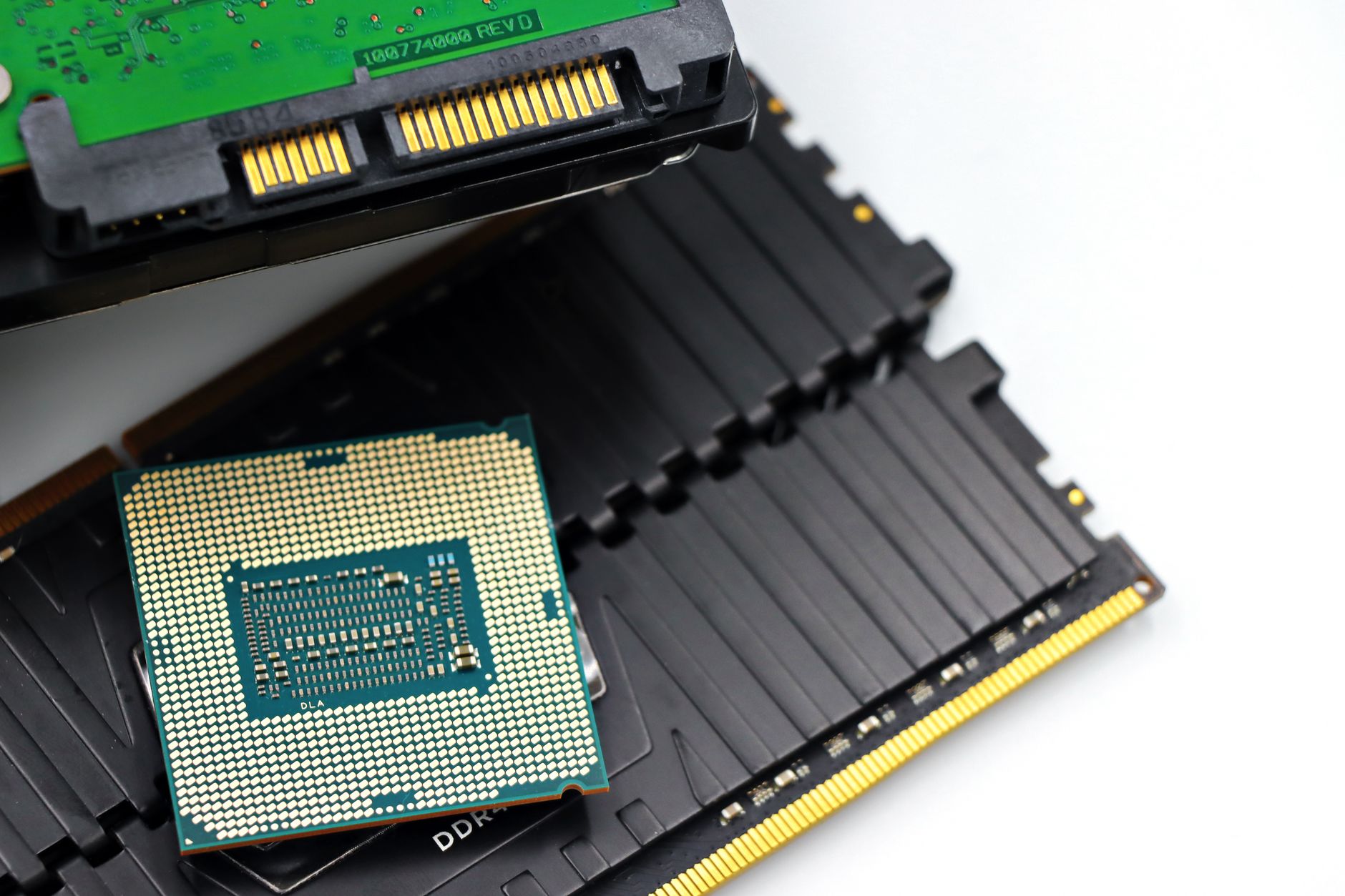
Windows 11 machines that suddenly feel sluggish are rarely suffering from hardware failure. Instead, the culprits are usually software-related—background tasks consuming unnecessary RAM, startup programs loading automatically but rarely being used, or disk fragmentation slowing down file access.
A common starting point is reviewing what launches at boot. Many applications install themselves as startup items without user awareness, drawing memory even when idle. A quick check in Task Manager’s Startup tab often reveals several programs that load automatically but see little active use. Disabling or delaying these—especially browser extensions and cloud sync tools—can free up gigabytes of RAM immediately.
Disk health is another frequent factor, particularly on traditional hard drives. Over time, file fragmentation can develop, even on solid-state drives if maintenance is neglected. Running a defragmentation tool (or an SSD-optimized trim operation) can sometimes improve read times noticeably. At the same time, outdated device drivers—especially for graphics or network cards—can cause stuttering that mimics hardware issues.
For users who’ve recently upgraded to Windows 11, one less obvious factor is the default search indexer. While it speeds up file searches over time, its initial indexing phase consumes CPU cycles and can slow overall system responsiveness. Pausing this task temporarily or adjusting its priority in Services can help smooth performance during heavy workloads.
If basic steps don’t resolve the issue, a deeper scan for malware or corrupted system files is recommended. Windows 11 includes built-in tools like DISM and SFC that can detect silent corruption without requiring a clean install.
The key takeaway is that before assuming hardware limitations are to blame, a methodical check of startup load, disk health, and driver status can often restore performance with minimal effort. Most modern PCs still have significant headroom—knowing where to look first saves time and frustration.