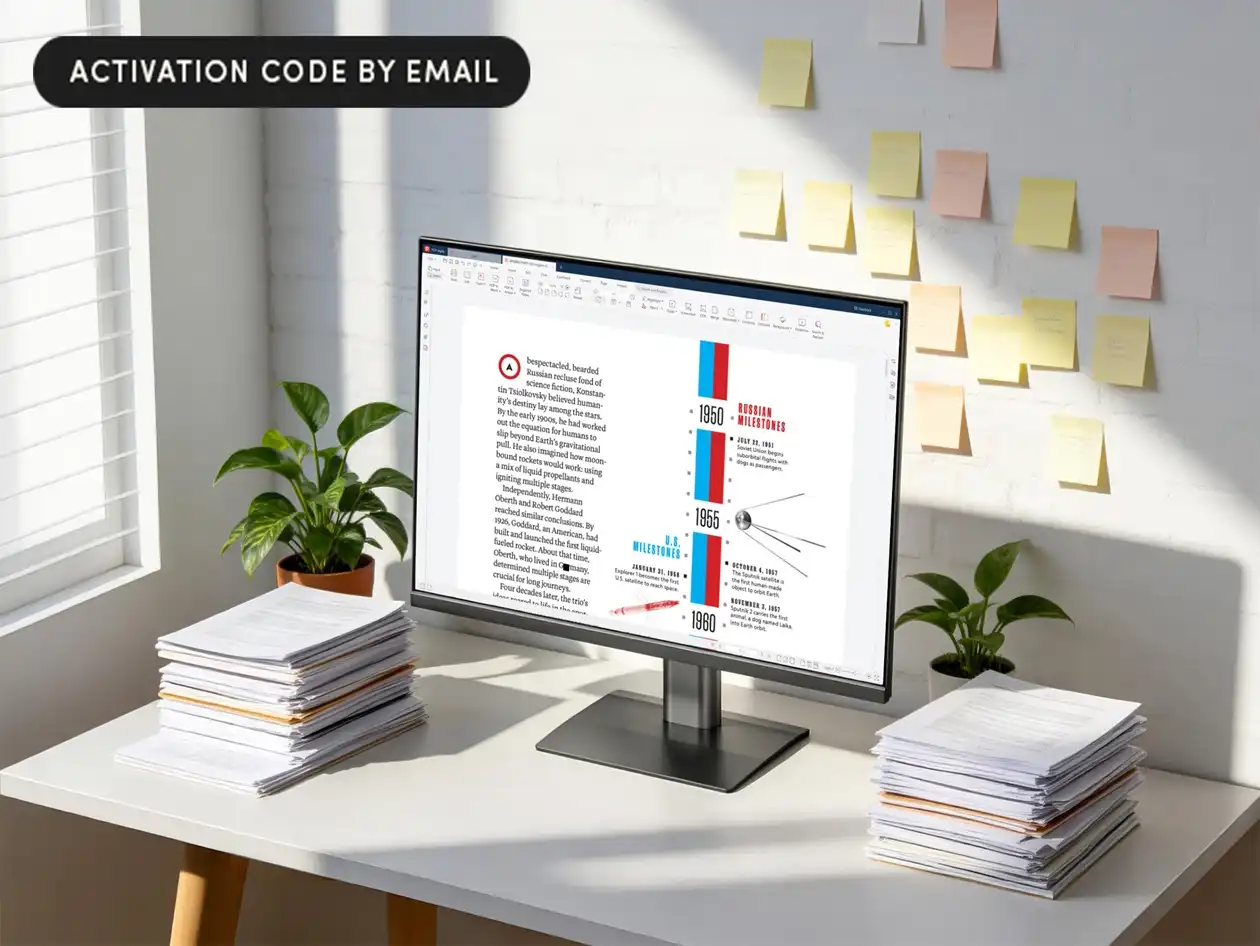
Moving data from one PC to another should be straightforward, but Microsoft’s new $35 transfer tool introduces tradeoffs that aren’t immediately obvious. While it handles the basics—files, settings, and even some game licenses—it doesn’t address every compatibility issue, leaving users to weigh convenience against potential pitfalls.
The tool, recommended by Microsoft for Windows 10 and 11 migrations, is designed to streamline transitions, but its effectiveness depends on what users expect from a transfer. It won’t replace full backups or cloud sync, nor does it guarantee seamless performance across different hardware configurations. For gamers, the real question is whether the tool’s simplicity justifies its constraints.
What the Tool Actually Transfers
At its core, the $35 utility moves user profiles, app data, and some game licenses between compatible PCs. It supports local transfers via USB or external drives, avoiding cloud dependencies that could complicate cross-device sync. However, it doesn’t handle all file types—certain system files, for example, may be excluded if they conflict with the destination OS.
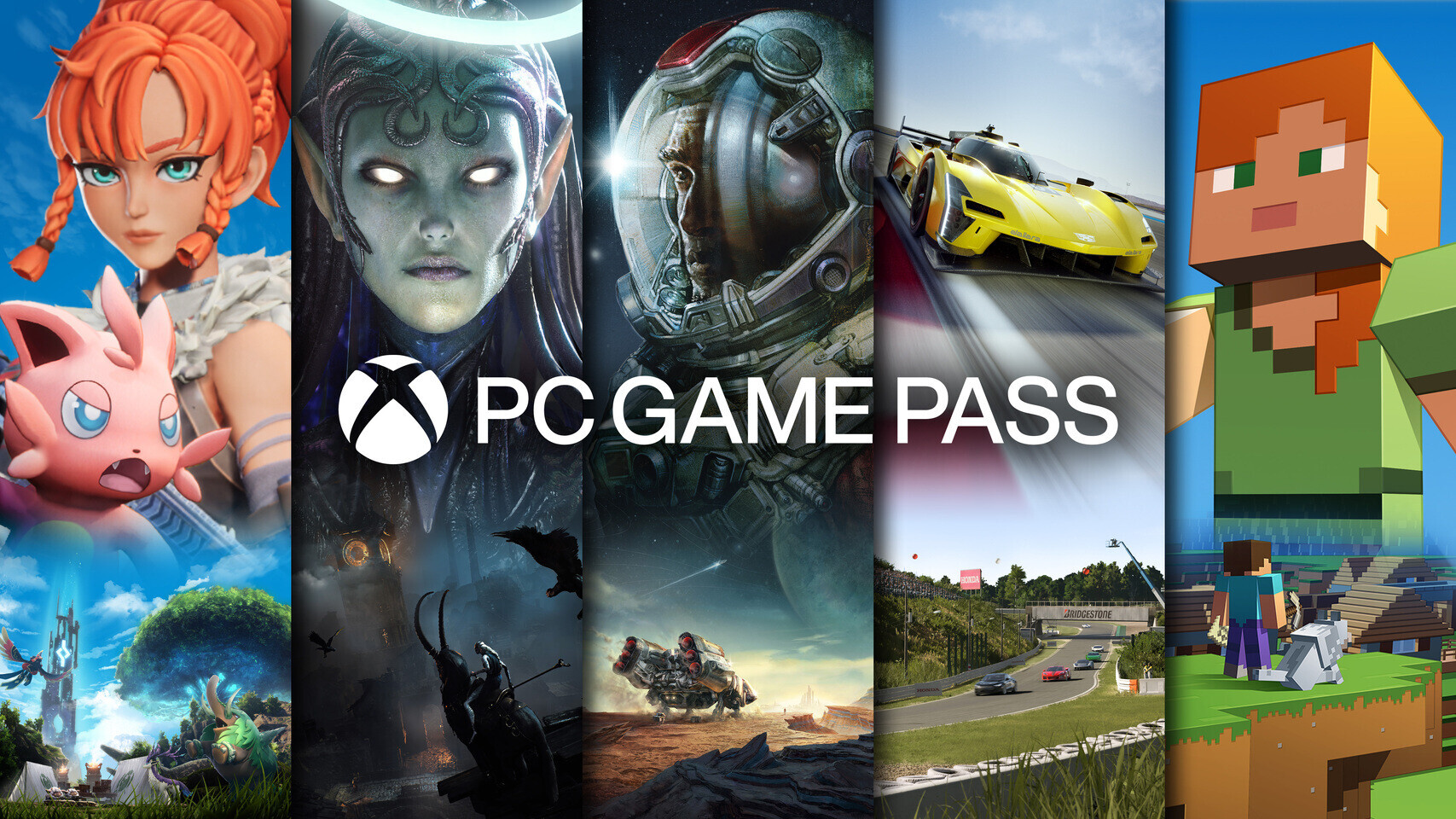
Gamers should note that while Xbox Game Pass and some EA Play licenses transfer, third-party DRM systems (like those used by Ubisoft or Bethesda) may not. The tool also skips over hardware-specific configurations, meaning custom GPU or CPU settings could reset unless manually reconfigured.
Where It Falls Short
The biggest risk isn’t the cost—it’s the assumption that a $35 solution covers everything. Users moving from older hardware (say, an Intel i5 to an AMD Ryzen build) may find performance profiles reset or drivers incompatible. The tool doesn’t account for software changes between Windows versions either; a transfer from Windows 10 to 11 could leave behind legacy app dependencies.
For those upgrading within the same family of devices (e.g., Microsoft Surface models), the process is smoother, but even then, local storage mismatches or missing drivers can create snags. The tool’s strength—simplicity—becomes a limitation when hardware isn’t identical.
A Decision Guide for Gamers
- Use it if: You’re switching between similar PCs (same OS, close specs) and want to avoid manual file transfers. It’s faster than copying folders manually, though not as thorough as a full backup.
- Avoid it if: Your new PC has significantly different hardware or you rely on unsupported DRM systems. The tool won’t recover lost data if something goes wrong during transfer.
The $35 price is reasonable for basic migrations, but gamers should treat it as a supplement—not a replacement—for robust backup strategies. It’s not the end-all solution Microsoft markets it to be, but in the right scenario, it can save time without introducing new risks.