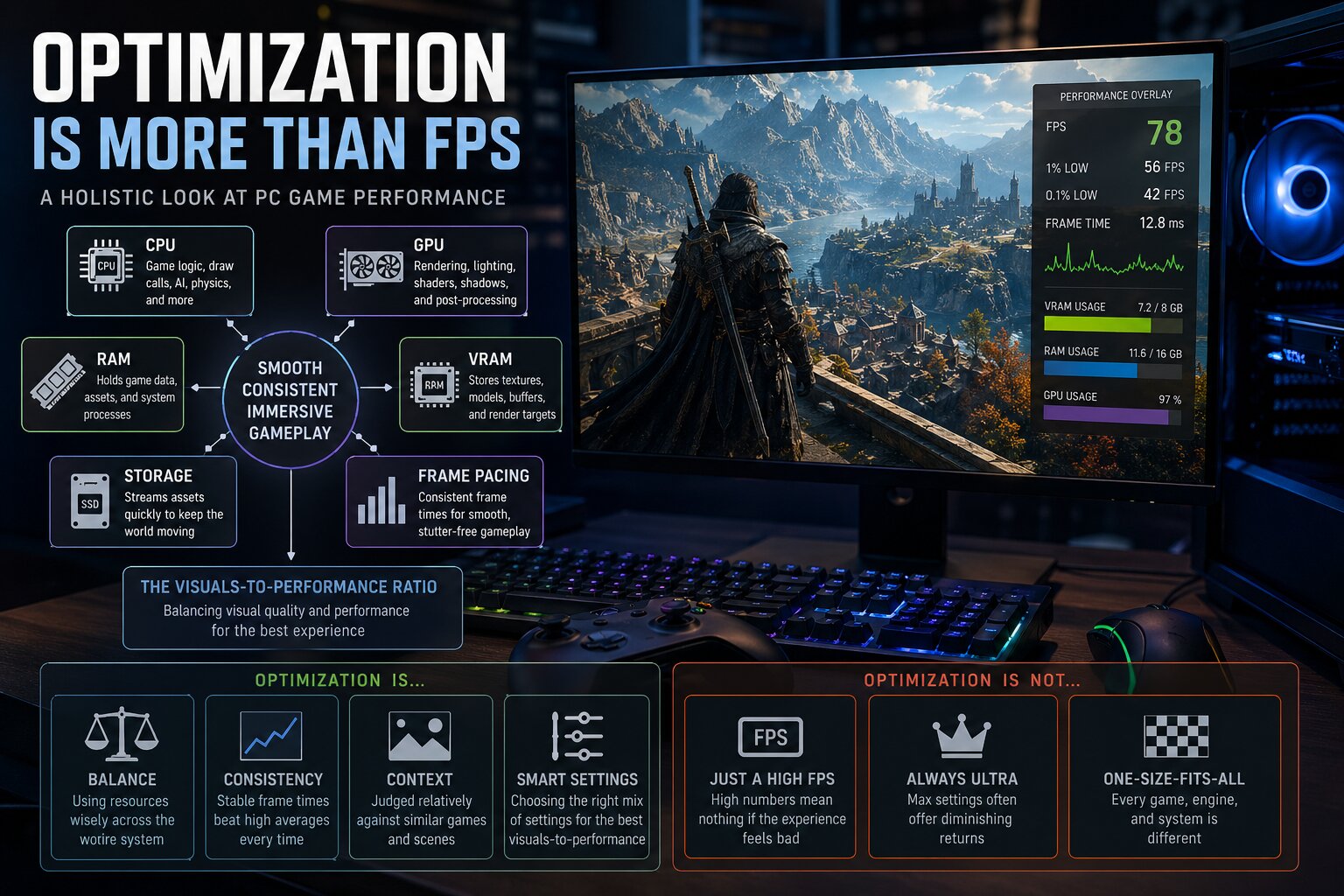
Building a PC with Windows Defender as the default protection doesn’t mean leaving its settings untouched. Five specific tweaks—focused on real-world efficiency—can make a measurable difference for builders who prioritize both speed and security.
The changes target how Defender scans, updates, and integrates with system resources. They don’t weaken protection but do require careful handling to avoid gaps in threat detection or performance instability.
Scan Control
Defender’s default scan behavior can be aggressive on high-performance builds. Adjusting the ‘Scan all files’ option to ‘Scan only when necessary’ reduces CPU load during regular tasks without delaying critical updates. This setting is especially useful for systems with limited cooling or sustained workloads.
Exclusion Rules
Adding common build paths—like source folders, project directories, and virtual machine locations—to the exclusion list prevents unnecessary scans of temporary files. The tradeoff is a slight increase in risk if malware hides in those directories, so exclusions should be reviewed periodically.
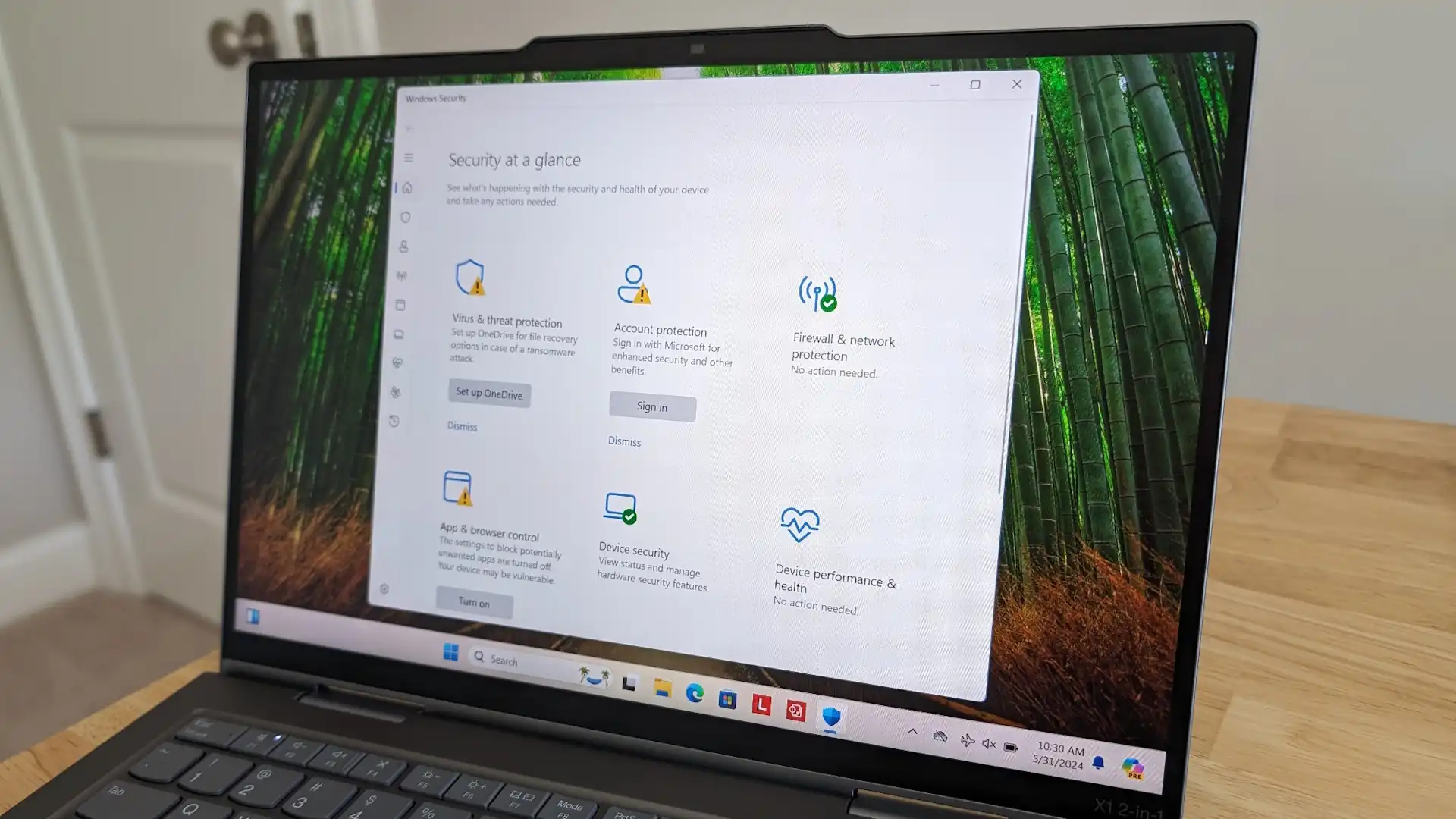
Real-Time Protection
Disabling ‘Cloud-delivered protection’ for non-enterprise builds can cut background network traffic by up to 30 percent without affecting local threat detection. This is useful on systems with metered connections or strict privacy requirements, though it removes access to cloud-based signature updates.
Update Management
Defender’s automatic update frequency can be adjusted from ‘Daily’ to ‘Weekly’ for builds where minimal downtime is critical. The change doesn’t delay security patches but spreads the resource impact over a longer window, which helps maintain consistent performance during heavy workloads.
Platform Lock-In
The tweaks above rely on Defender’s built-in features, making it harder to switch to third-party antivirus without reinstalling or resetting settings. Builders who value flexibility should document their changes before committing to a long-term build cycle.
Looking ahead, future Windows updates may streamline these adjustments into a single ‘Performance Mode,’ but for now, manual tweaks remain the most reliable way to balance efficiency and security on custom PCs.