Most PC users never touch their BIOS. It’s buried deep in the system’s boot process, invisible unless something goes wrong. Yet for those who do venture into firmware updates, the stakes couldn’t be higher: a single misstep could render a machine unusable. But skipping updates might leave hardware incompatible or security flaws unpatched. So how do you decide whether to update—and when to walk away?
The answer isn’t binary. While BIOS updates often fly under the radar, they serve as the invisible backbone of a PC’s hardware compatibility and stability. Manufacturers release them to address everything from CPU support for the latest processors to fixes for erratic fan speeds or voltage quirks. Yet the process carries a reputation for being perilous—one interrupted flash and your system might refuse to power on.
Myth: *If it ain’t broke, don’t fix it.*
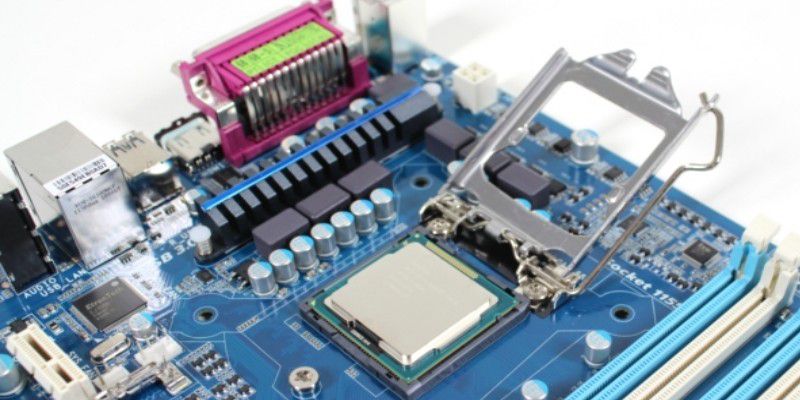
This is the default mindset for many users, and for good reason. A stable system running on older firmware is rarely a problem—unless you’re planning to upgrade. For example, modern AMD Ryzen or Intel Core processors often require a BIOS update to function at all. Motherboards may reject newer CPUs entirely without the latest firmware, leaving you with a brick. Even RAM upgrades can fail if the BIOS lacks support for higher-speed modules or dual-channel configurations. The same goes for SSDs: some drives won’t initialize properly without updated UEFI drivers.
Reality: *Updates are mandatory for new hardware—but optional for everything else.*
Before installing a new GPU, CPU, or RAM, check the manufacturer’s website for BIOS compatibility requirements. If your motherboard lacks support for the component you’re adding, an update is non-negotiable. However, if your system is running smoothly and you’re not adding new parts, the risks of updating often outweigh the benefits.
Security is another critical factor. While BIOS vulnerabilities are rare, they do exist. Attackers could exploit flaws in firmware to gain low-level control over a system—though such attacks remain advanced and targeted. Most users won’t face this risk, but enterprise environments or high-value systems should treat BIOS updates as part of regular patch management.
Myth: *All updates are created equal.*
Not every BIOS revision is worth the trouble. Manufacturers release updates for stability tweaks, bug fixes, and hardware enablement—but some are minor tweaks with negligible impact. Always review the release notes before flashing. Look for keywords like CPU support, memory compatibility, or security patches. If the update only addresses a cosmetic issue or a problem you don’t encounter, it’s safe to skip.
Reality: *Proceed only with purpose—and precautions.*
If you decide to update, follow these steps to minimize risk
- Backup your current BIOS. Some motherboards include a fallback mechanism, but not all. Use tools like AMI Backup or ASUS EZ Flash to create a recovery copy.
- Download the correct file. Grab the latest version directly from the manufacturer’s support page—never rely on third-party sources.
- Use a stable power source. Uninterrupted power is critical. Plug your PC into a UPS or ensure your power supply is reliable.
- Update from within the UEFI. Many modern motherboards allow flashing directly from the BIOS menu, reducing the chance of a failed update.
- Avoid interrupting the process. Never power off or reset during the update—wait for confirmation that it’s complete.
What if something goes wrong? Some motherboards include a BIOS recovery mode, accessible by holding a specific key during boot (often F7 or Del for ASUS, F12 for Gigabyte). If your system becomes unbootable, this can restore a backup or reload the firmware. However, not all boards have this feature—so proceed with caution.
The bottom line: BIOS updates are a tool, not a chore. Use them when necessary—like enabling a new CPU or patching a critical flaw—but don’t treat them as routine maintenance. For the average user with a stable system, the risks rarely justify the effort. But for those pushing hardware to its limits or facing compatibility walls, an update might be the only way forward.